»How to Forward an Email as an Attachment
To forward emails exactly how they were sent, you can forward emails as attachments. Forwarding emails as attachments is useful for forwarding spam emails you have received.
Outlook Web Mail for Office 365
1. Click +New Email Message or New Email
2. Organize your email list and your new message so that you can view both at the
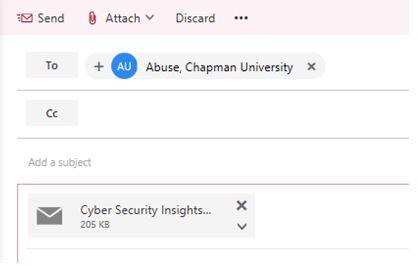
same time. 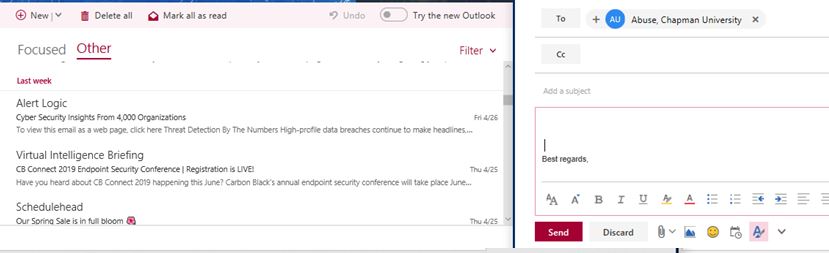 3. Drag the email from your email list and drop it into your new email message.
Outlook
1. Click New Email
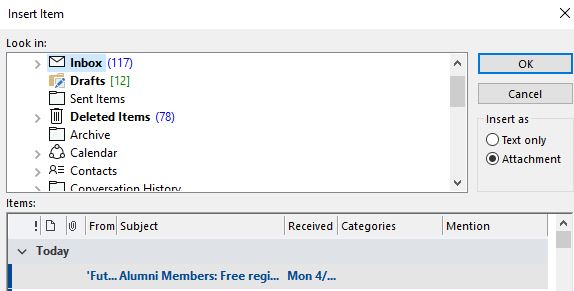
2. On the Message menu above 'Include' select 'Attach Item' and click 'Outlook Item'

3. Click on 'Inbox' and select the email you received to send as an attachment, and click OK