
- Your document will be available to print for up to 1 hour at any MobilePrint release station.
- The pages will be deducted from your free print credits or declining balance. Be sure you have a positive balance.
- Wireless color printing is available in the Leatherby Library Rotunda.
- Print charges will be applied once you release your print job from one of the Chapman MobilePrint Release (touchscreen) Stations.
- For additional information on printing, please refer to our Printing Policy.
Information Systems & Technology
MobilePrint
»How to use MobilePrint
Chapman Mobile Print allows any currently enrolled Chapman Student to print from any email-enabled device. Chapman Mobile print can print both standard black-and-white one-sided pages and black-and-white two-sided (duplex) pages, and can support multiple documents per email.
Printing a 1-sided document
- Compose a new email to mobileprint@chapman.edu using your Chapman University email address.
- Example: username@mail.chapman.edu or username@chapman.edu
- Attach a supported document to the email (See Supported Document section below).
- Press send, and your document will be ready for printing within 5 minutes.
Printing a 2-sided document
- Compose a new email to duplex@chapman.edu (for black/white and double-sided) or colorduplex@chapman.edu (for color and double-sided) address using your Chapman University email address.
- Example: username@mail.chapman.edu or username@chapman.edu
- Attach a supported document to the email (See Supported Document section below).
- Press send, and your documents will be ready for printing within 5 minutes.
Uploading Documents for Printing
As an alternative to sending documents to mobileprint@chapman.edu and releasing them at a print station, you can also upload your documents online.
This method is great if you can’t access your email account or if the document you’re
trying to print is too large to email. To upload documents into the Print Center,
follow these instructions:
-
- Open a web browser and go to https://mobileprint.chapman.edu/myprintcenter/
- Log in with your Chapman username and password (same one you use to log into my.chapman.edu)
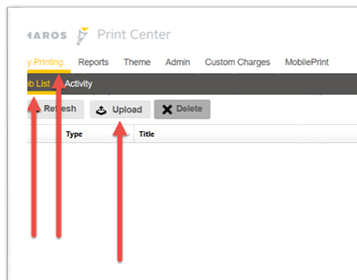
- On the "My Printing" tab, under "Job List," click on the "Upload" button and locate
the document you would like to print on your computer.
- You can see the upload status under "Title," next to your document's name.
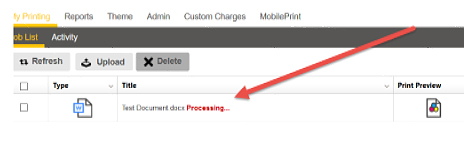
- When the upload has completed, the "Processing…" status will disappear, and you will
be given the number of pages, the paper to be used, and the cost of the print job.

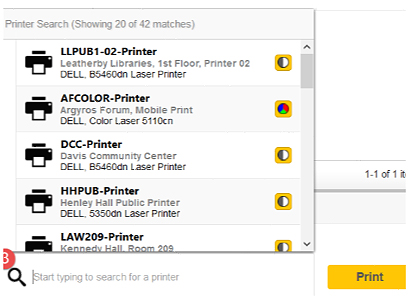
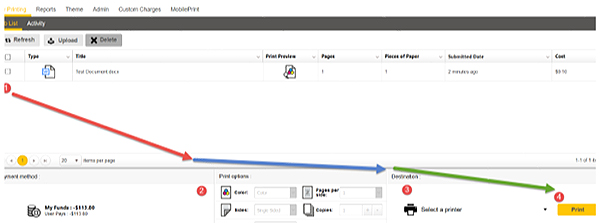
- When you arrive at a print station, swipe your card and release the print job. Alternatively,
you can log in to a public computer, log back into your Print Center, select your
document, change your print options, and select a specific public printer to release
your document.
Supported Documents for Chapman Mobile Print
- Office documents: Word, Excel, and PowerPoint
(.doc,.dot,.docx,.rtf,.eml,.xls,.xlsx,.csv,.ppt,.pptx,.pptm) - Image files (.jpg,.png,.gif,.bmp)
- Text file (.txt)
- PDF documents (.pdf)
How to Uninstall the Old Chapman Wireless Printer
Chapman MobilePrint Release (touchscreen) Stations
| Building | Location |
|---|---|
| Henley Residence Hall | 1st Floor Study Room |
| Leatherby Library | 1st Floor Copy Alcove |
| Leatherby Library | Rotunda |
| Argyros Forum | 1st Floor Amazon Lockers |
| Argyros Forum | Student Union |
| Beckman Hall | Jazzman Cafe |