
»Chapman Syllabus
Chapman Syllabus is a centralized platform integrated into Canvas and is a supportive tool for instructors.
It allows them to quickly and easily create, duplicate, and publish syllabi, leveraging
University information to auto-populate content; it significantly reduces their workload
and streamlines syllabus preparation. The platform features advanced analytics, enabling
faculty to monitor student engagement with the syllabus.
Chapman Syllabus will serve as the official repository for all course syllabi, supporting
faculty, students, and academic units with a unified, efficient solution.
Chapman Syllabus Features
- Enhances the standard Canvas Syllabus tool with added features.
- Automatically generates a Course Summary table by integrating with assignments, quizzes, and discussions in Canvas.
- Fully editable directly within Canvas.
- The accessibility checker is designed to help make syllabus clear and usable for all students.
- Easy-to-print or save-as-PDF versions of the syllabus are now available.
How to Access Chapman Syllabus
You can access the Chapman Syllabus in two ways:
- Visit the Chapman Syllabus Repository to search for syllabi
- Log in to Canvas and go to your course to access the syllabus.
Video explaining how to access the Chapman Syllabus
Instructors, to learn more about the Chapman Syllabus and how to add it to your course, please review the sections below for Instructor Training:
Instructor Training
What is a Template?
A Template in Chapman Syllabus is a predefined syllabus structure that breaks down
content into individual components of information instead of a comprehensive document,
so that it can be authored in a more granular fashion that saves time and ensures
accuracy.
Each level of our organizational structure has its own syllabus template, and components
built at a higher level will be reflected in lower-level templates. At Chapman University,
our structure is as follows:
Chapman University > College > Department > Subject
Example Structure:
- Chapman University (University)
- School of Communication SOC (College)
- Comm (Department)
- Communication COM (Subject)
- (Courses)
- First-Year Foundations FFC (Subject)
- (Courses)
- Strategic and Corporate Communication SCC (Subject)
- (Courses)
- Communication COM (Subject)
- Comm (Department)
- School of Communication SOC (College)
Login to Canvas to Access Your Syllabus
Chapman Syllabus is available in Canvas as Chapman Syllabus. In your Canvas course go to the Settings tab, click on Navigation, and enable the tool Chapman Syllabus to access the new platform.
- Click on Chapman Syllabus from your Canvas course navigation.
- Click Edit to open edit mode.
Note: Chapman Syllabus is not functional in sandbox, template, or Dens. Additionally, the Canvas Student View option is not fully compatible and is not recommended to preview your syllabi.
Chapman Syllabus is Missing from my Canvas Course Menu
If the Chapman Syllabus tool is missing from your Canvas course menu, it may be because a course copy overwrote your course navigation settings. Follow the steps below to restore the tool:
- In your Canvas course, click Settings.
- Select the Navigation tab.
- At the top of the page, you’ll see the navigation links that are currently visible to users.
- Locate Chapman Syllabus in the list at the bottom of the page.
- Drag Chapman Syllabus to the top section to your desired location.
- Click Save.
Make Edits To Your Syllabus
 Navigating
The Chapman Syllabus is broken up into components. The baseline syllabus template includes many helpful
components distributed university-wide. Some departments or courses come with additional
components by default. Many templated components can be modified; however, certain
components, such as University Policies, are locked and cannot be modified by instructors.
If you need a co-instructor added to edit the syllabus, and they are not enrolled
in the Canvas course, please email canvas@chapman.edu (note this process can take 24-48 hours before they gain access).
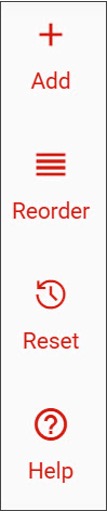
The top left will contain options:
-
-
-
- Add – add an additional component
- Reorder – change the order of components
- Preview – preview the syllabus
- Help – Chapman Syllabus help and knowledge base
-
-
Help Text
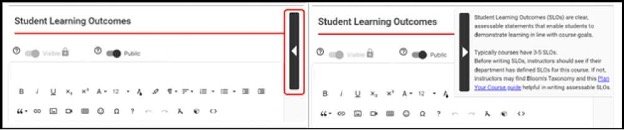
Each component has Help text on the right-hand side. If the Help text is hidden, click the arrow to show the text.
Privacy and Visibility Options
Syllabus components also contain visibility options for the Syllabus Library and your
students: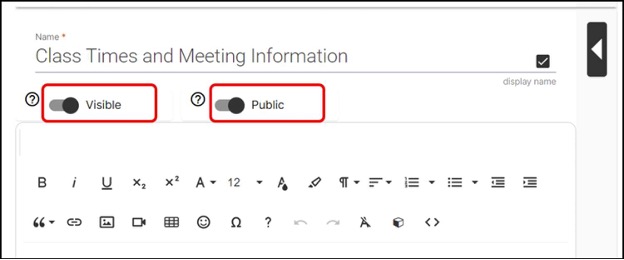
- Visible – means that the component will appear in the final version of the syllabus if it
contains content. If you do not wish to show a component in the finalized version,
click to change to Invisible. Note: Leaving a component blank will also render it invisible on the syllabus.
- Public – the syllabus library is set to the campus community, meaning when the syllabus is published, and as long as students, instructors, and staff have a Chapman user account and are logged into our site, they will be able to view the syllabus. Private means that only the instructor and students in that course can see the information when the syllabus is published.
- Scroll to the desired component. If the syllabus component has a text box, you can
type your information directly into the text box, copy and paste from another application,
or select the edit button to make edits.
- To copy and paste: Windows users utilize “Ctrl V” and MAC users press Command+V (
⌘ the MAC Command symbol on the keyboard).
- Rich Content Editor (RCE)
- To copy and paste: Windows users utilize “Ctrl V” and MAC users press Command+V (
⌘ the MAC Command symbol on the keyboard).
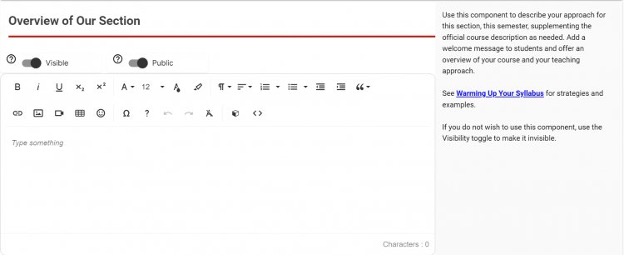
Chapman Syllabus provides plain text entry fields and a Rich Content Editor (RCE) to customize text formatting, apply heading structure, add rich media, or organize items into tables. The RCE toolbar in Chapman Syllabus allows you to apply:
-
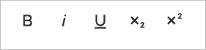
- Basic Formatting - Bold, italicize, or underline text. Apply subscript or superscript to characters
and numbers.
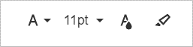
- Rich Formatting - Select a different font family or font size. Apply color to text and backgrounds.

- Paragraph Formatting - Apply heading structure and alignment to text, or create an ordered or unordered
list. You will also find the options to indent paragraphs or insert a quote to emphasize
a block of text. The paragraph tool allows you to set accessible headings within textboxes.

-
Table insert tool
-
Click the insert table icon from the toolbar of the content editor and select the number of rows and columns.Insert Objects - Insert a hyperlink; upload or link to an image; link, embed, or upload a video file; and insert a table. Emoticons are also available to insert into (or emphasize) text.
-
-
Adding a Table Header
-
Once the table cells are added, click in a cell in the top row of the table. This will display the tools to assist with table customization.
-
Click on the Table Header icon. This will create a Table Header row at the top of the table. The color of the cells will be shaded gray by default. However, the cell color as well as the font color, style, and size are customizable using the table editing tools.
-
-
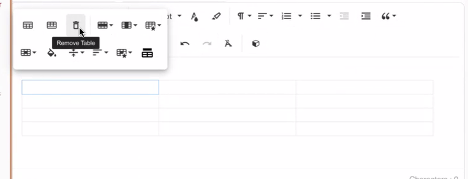
- To delete the table, click anywhere on the table. Select the trash icon to delete.
- Basic Formatting - Bold, italicize, or underline text. Apply subscript or superscript to characters
and numbers.
Add an Additional Content Component
The content component allows you to add or edit text within the document using a WYSIWYG (What You See Is What You Get) Editor. With Chapman Syllabus, you can create your content from scratch or copy and paste from a desktop application like Microsoft Word.
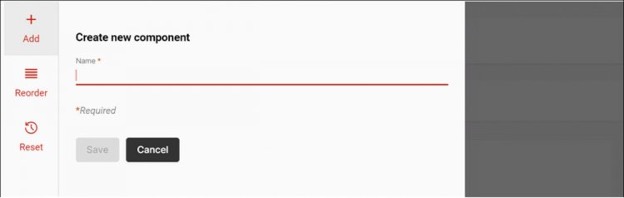
- You can add additional components by clicking on the + Add new component at the bottom of the syllabus or + Add at the top of the syllabus.

- Enter the Name of the new component. This is used to identify the purpose of the component
content.
- Select a Content Component.
- Click Save to create the component.
How does the syllabus tool handle formatting?
The syllabus tool removes formatting that might cause issues while fully allowing you to apply accessible formatting within the editor, ensuring readability for all students and assistive technologies.
What about inserting tables?
It’s recommended that tables be created using the table builder in the content component rich text editor. This helps avoid formatting problems from pasted tables and reduces potential accessibility
issues.
Will I have to redo this every term?
No. This is a one‑time setup. Once your syllabus is built, you can reuse it each term.
Future updates will be quick edits—not a full rebuild.
Submitting and Sharing Your Syllabus
- Click Submit at the bottom of the syllabus. You must click Submit in order for your
students to see it through Canvas.

After submitting your syllabus, you will receive the following prompt. This will allow you to copy the syllabus URL if you wish to provide a link or an embedded version of the syllabus to an external system (it will automatically appear in your Canvas course).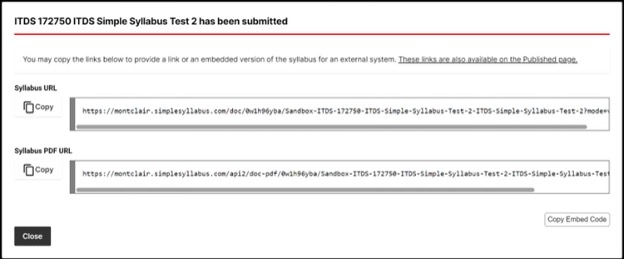
- Click Close to continue. The finalized syllabus will then display. Once your course is published, this is the version students will see when clicking on the Chapman Syllabus. Students can jump to different sections by clicking the component titles in the left navigation. After the syllabus has been submitted, click Edit in the survey preview to make additional changes.
Download or Print Your Syllabus
Tracking Student Engagement
Chapman Syllabus allows instructors to track student engagement with syllabi using
the Student Engagement feature.
Navigate to Chapman Syllabus in your course. The black horizontal bar will display
the student engagement. The black portion of the bar represents the number of students
who have viewed the syllabus, and the white portion represents the number of students
who have not viewed the syllabus.
- Syllabus Engagement Tracking Status Bar
- Click on the black bar for a detailed breakdown of syllabus engagement by student.
Syllabus student engagement report with a list of students, syllabus count, percentage
read, and last viewed information.
The first column displays the list of students enrolled in the class, the middle column
displays how many times each student has viewed the syllabus, and the last column
displays the last viewed date.
When students view the Chapman Syllabus, they will receive a Syllabus Acknowledgement
prompt reminding them to hit the acknowledge button when they have read the syllabus
in its entirety. This will be indicated with a green check mark in the syllabus engagement
breakdown. A syllabus acknowledgement prompt window with an 'OK' button to confirm
the student has read the syllabus.
Reuse and Edit Your Chapman Syllabus from Another Section or Prior Term
Every course has its own syllabus template. However, if you have published a Chapman Syllabus for the same course in another section or prior term, you DO NOT need to start from scratch. You can pull in a previously published Chapman Syllabus to reuse in another section or term.
- Login to Canvas and go to your course.
- Click Chapman Syllabus on the Navbar in your course.
- Locate and click Replace with a different Syllabus (found at the top of your syllabus)
- Select which term you are bringing into the Syllabus from (either this term or a past term). Then select the correct section. Remember, this is pulling in an already published Syllabus to be used and edited for a new section you will be teaching.
- Once you click on the section, your other Syllabus will be pulled in, and you will be able to edit with the course information.
- Once you have finished making your edits for the revised Syllabus, click Publish.
Search the Syllabus Library
The Syllabus Library is a centralized repository for all campus syllabi in Chapman
Syllabus, archived by term.
Using the search tool, you can quickly find any class syllabus that is set to Public
using a variety of criteria. All syllabi stored in the Syllabus Library are maintained
in mobile, web, and print formats for easy viewing.
- Go to the Chapman Syllabus site and log in with your Chapman credentials.
- From the left navigation, click Syllabus Library.
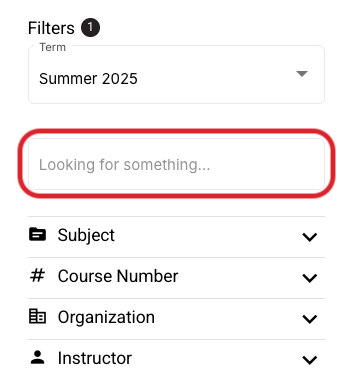
The syllabus search and filter tool within the Syllabus Library allows you to narrow down results by a variety of criteria, including Keywords, Term, Organizational Unit, Subject, Course Number, and Instructor. Any syllabus that meets the results of your filter will be returned and can be viewed in a mobile, web, or print format.
- Term: Terms can be filtered by Future, Current, or Historic syllabi. Within each category, you can further filter by term by clicking the Caret after the category. You may filter by multiple criteria; check all that apply.
- Keyword Search: The library can be searched by keyword using the "Looking for something…" search field. Enter the word(s) and hit Enter.
- Subject: Select the appropriate subject code from the drop-down list.
- Course Number: Select the appropriate course number from the drop-down list.
- Organization: Select the appropriate organization from the drop-down list.
- Instructor: Type the instructor's name into the search bar.
How does Simple Syllabus work for cross-listed or merged courses?
- Instructors can only edit the syllabus for the primary section.
- Syllabi from secondary sections will not appear in the Canvas.
- When someone clicks the Chapman Syllabus link in Canvas, the system uses the course’s unique ID and displays the syllabus tied to the primary section.
Example: If ACT 2100 1 and ACT 2100 2 are merged and ACT 2100 1 is the primary section:
- Everyone in the merged course will see the ACT 2100 1 syllabus
- The ACT 2100 2 syllabus will not be visible
- Private content will not be visible to students from merged sections.
- Student engagement (views and acknowledgements) is not tracked for private content in merged enrollments.
- To ensure all students can view the syllabus, the Access setting must be set to Public
❗ If the syllabus is set to Private Access, students in merged sections will see an error message:
“Sorry, you do not have access to view this document.”