»Canvas Grades
Instructors now have the ability to transfer final grades from Canvas directly into Faculty Center (Campus Solutions) with a single click. This integration is designed to reduce the need for manual data entry, minimize errors, and save valuable time during the grading period.
Once your Canvas gradebook is finalized and grades are ready for submission, the Grade Transfer tool enables a secure and efficient upload of final grades into the PeopleSoft system. This process ensures consistency between platforms and helps simplify the administrative workload associated with closing out the semester.
Whether you are teaching one course or multiple sections, this tool offers a reliable and convenient method to complete grade submissions accurately and on time.
Comprehensive step-by-step instructions are available to guide you through the process.
To begin, please refer to the comprehensive step-by-step instructions below.
Step 1: Canvas Grades Set Up
A. Create a Grading Scheme
What is a grading scheme, and why should you set it up?
A grading scheme in Canvas is a set of criteria that maps numerical percentages to letter grades. If a grading scheme is not set up, Canvas will only display a percentage, and a letter grade will not be pulled into Campus Solutions.
STEP 1
Log on to canvas.chapman.edu and navigate to your Canvas course. On the left-hand menu, scroll down and click on Settings.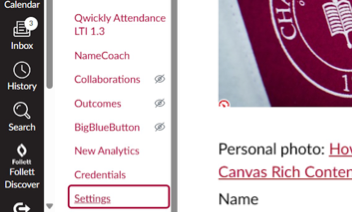
STEP 2
Check Enable course grading scheme.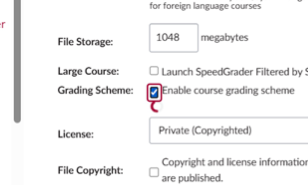
STEP 3
Click on + New Grading Scheme.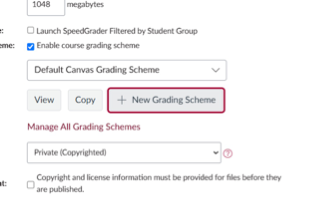
STEP 4
Give your grading scheme a name and adjust the Range accordingly.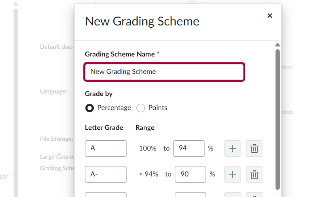
STEP 5
Click on Save.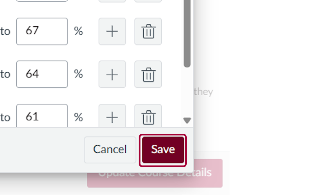
STEP 6
Click on Update Course Details.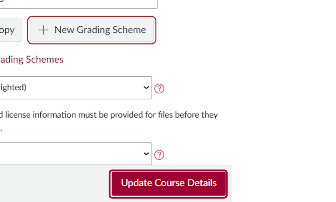
B. Set Up Weighted Grades (Optional)
What are Weighted grades?
Weighted grades in Canvas are a grading setup where different types of assignments (like quizzes, participation, and exams) each contribute a specific percentage to the final grade, rather than just counting all points equally.
STEP 1
Log on to canvas.chapman.edu and navigate to your Canvas course. On the left-hand menu, click on Assignments.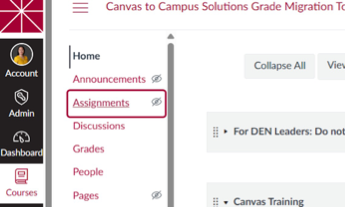
STEP 2
Click on +Group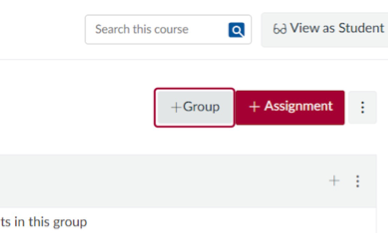
STEP 3
Create Groups based on your syllabus. Repeat adding groups for each weighted category.
Some common examples of Groups are "Assignments, Quizzes, Participation, Exams".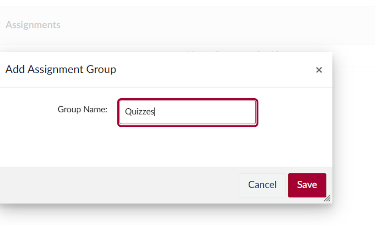
STEP 4
Click on Save.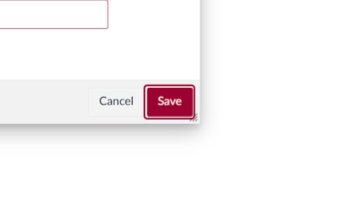
STEP 5
Click on Assignments Settings.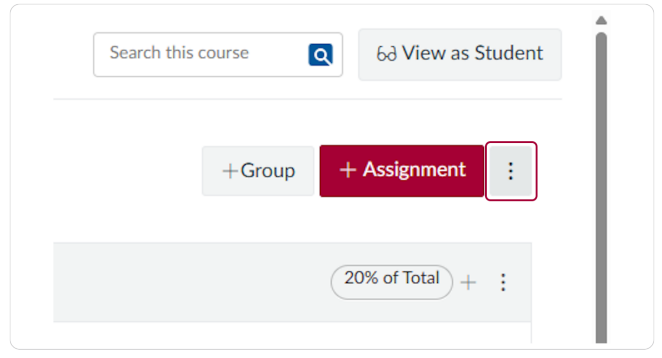
STEP 6
Click on Assignment Groups Weight.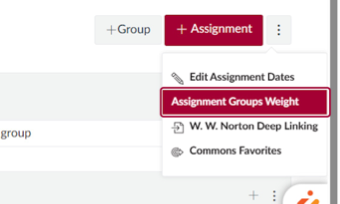
STEP 7
Check the Weight of the final grade based on assignment groups.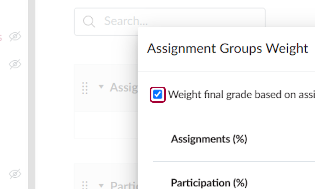
STEP 8
Type the percentage for each weighted category.
Please ensure that the percentage adds up to 100%.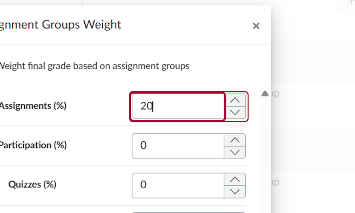
STEP 9
Click on Save.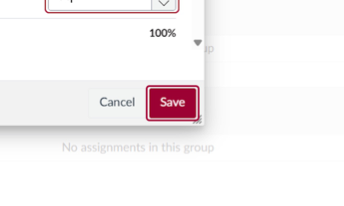
C. Check Grades for Accuracy
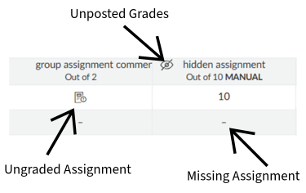
Missing Assignments indicate that the student did not submit the work. This impacts the total grade because Canvas treats the assignment as 0 out of 0, rather than 0 out of the full point value. To ensure accurate grade calculations, please enter a zero for any missing assignments. If the student is excused from the assignment, type 'EX' in the cell.
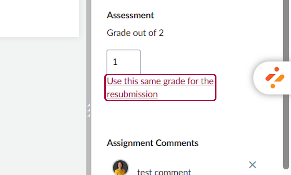
Ungraded Assignments indicate that the student has submitted or resubmitted work and is awaiting grading or regrading. This can affect the total grade—Canvas may treat the assignment as missing or continue using the original score if the resubmission hasn't been reviewed. To resolve this, please enter a score for the assignment. If it's a resubmission, open the student's submission in SpeedGrader and either update the grade or click "Use this same grade for the resubmission."
Unposted Grades mean the assignment is set to a Manual Grade Posting Policy, and grades are hidden from students until the instructor manually posts them. This
can affect the student's view of their total grade, as Canvas excludes unposted scores
from grade calculations. To fix this, click the three dots next to the assignment name in the gradebook and select "Post grades."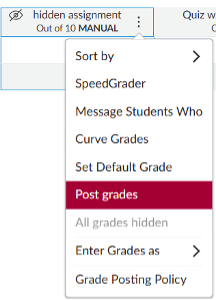
D. Enable Final Grade Override (Optional)
The Final Grade Override allows you to enter a final grade for students that is different from the grade automatically
calculated by Canvas in the Gradebook. You can enter a letter grade or a percentage.
Please see this guide: "How do I override a student's final grade in the Gradebook?"
Step 2: Transfer Grades to Faculty Center
Migrate Grades to Faculty Center
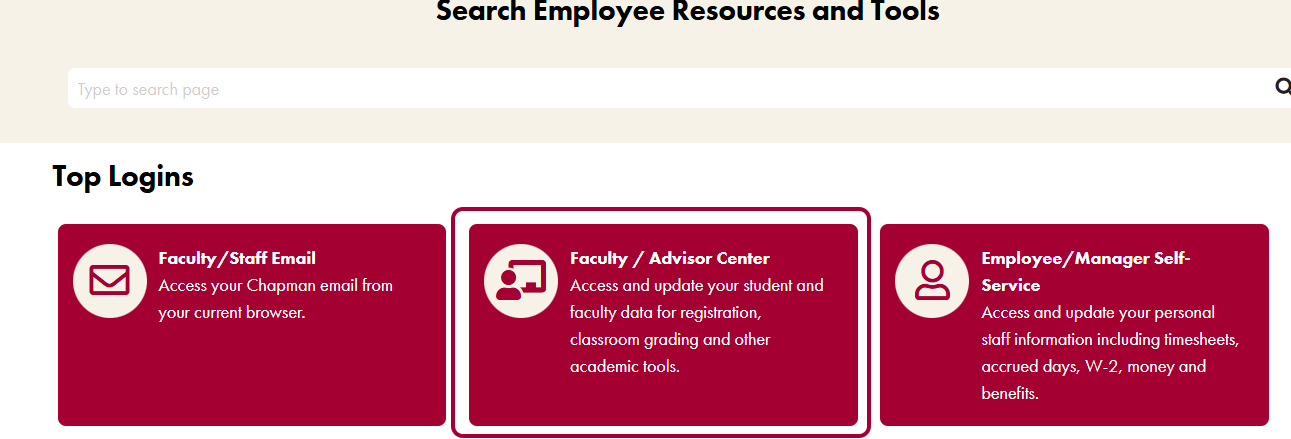
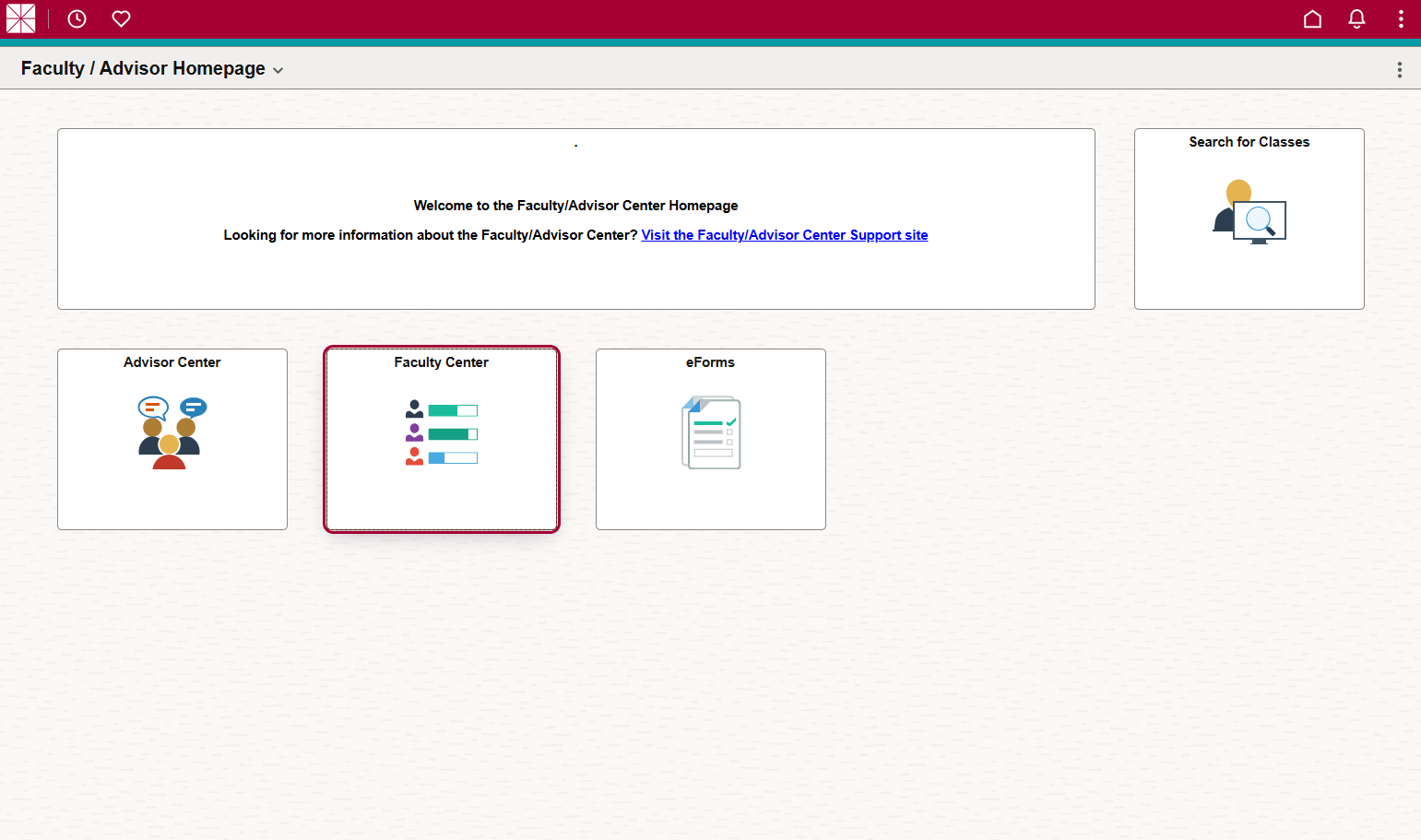
STEP 2
Faculty Center
STEP 3
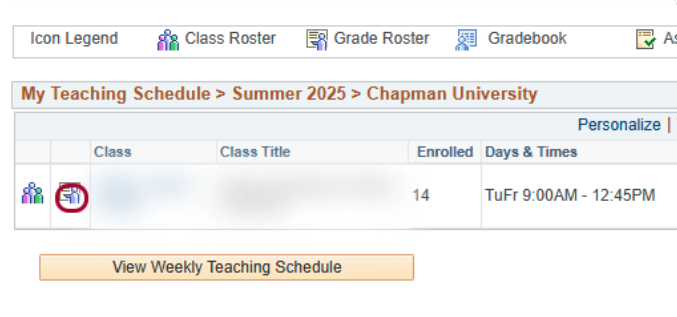
Click on Grade Roster
STEP 4
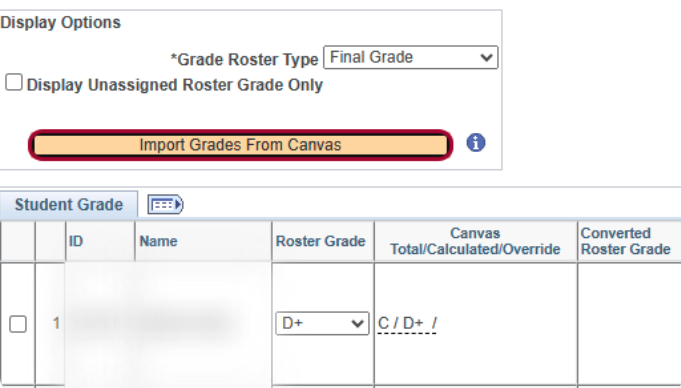
STEP 5
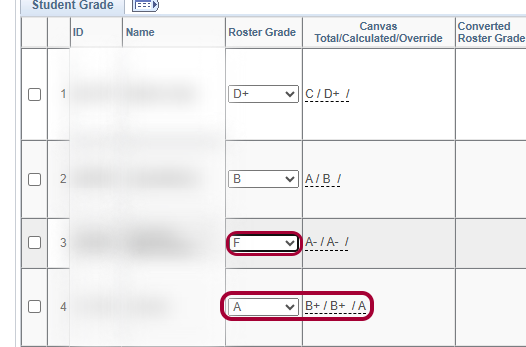
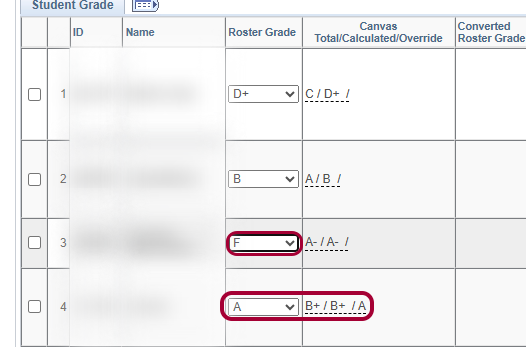
The Import tool uses the Calculated Grade rather than the Total Grade. The Total grade for your reference and is what you see in the Total column in Canvas. The Calculated grade assumes the missing assignments are zeroes. The Override grade will be used if applicable.
NOTE: If you only see the numeric score and not the letter grade, then you need to add a Grading Scheme in Canvas.
STEP 6
If you don't want to use the grade that was imported, click on the drop-down menu to manually change the student's grade or use the Grade Override feature in Canvas and click Import Grades from Canvas again.
STEP 7
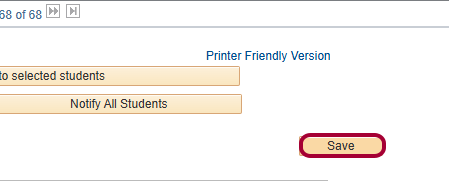
If you are ready to submit your grades, click Save at the bottom. A confirmation will pop up letting you know your grades have been submitted.