»Canvas Accessibility
Fundamentals of Accessible Digital Content in Canvas
Canvas offers a free course in its training portal titled "Fundamentals of Accessible Digital Content in Canvas." This course is highly recommended for everyone creating content in Canvas, including
faculty, staff, student workers, and Den Leaders.
Start by logging into Canvas. Once you are logged in, select the Help button from the Global Navigation on the left. Look for the Training Services Portal link in the list. The link is visible to all roles except Students and Observers.
Once in the Training Portal, type “Accessible” in the search box, and the first search
result will be “Fundamentals of Accessible Digital Content in Canvas”. Click “Enroll
Now” to get started!
For additional help, refer to this guide for steps to access the On-Demand Training Portal.
Accessibility Tools
Canvas has the following accessibility tools: The Accessibility Checker helps you find and fix accessibility issues while you are in Canvas's Rich Content Editor. Ally helps you find and fix inaccessible content. It also helps convert uploaded files into alternative formats to improve content accessibility.
Accessibility Checker
The Accessibility Checker is available anytime you use the Rich Content Editor in Canvas. You will see it in Announcements, Assignments, Discussions, Pages, Quizzes, and New Quizzes.
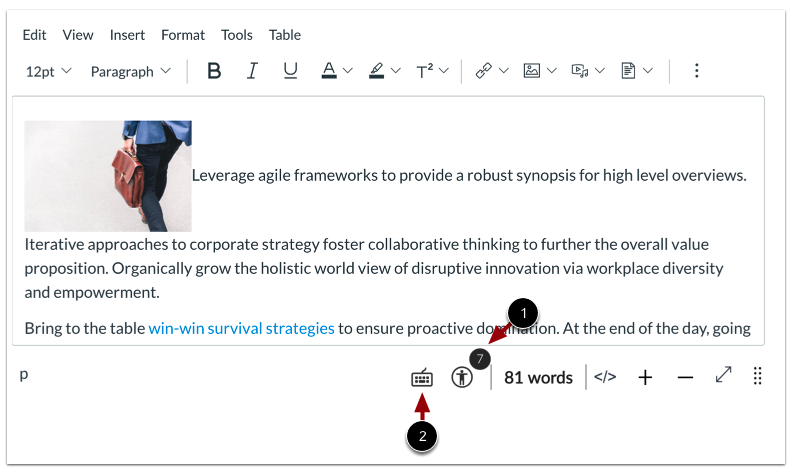
If there are any accessibility issues on the page, they will be indicated by a number. Select the accessibility icon (it looks like a person), and a window will open with information about the detected errors.
The Accessibility Checker automatically checks the accessibility of tables, images, lists, headings, and color contrast.
How do I use the Accessibility Checker in the Rich Content Editor?
Ally in Canvas
Ally in Canvas is used by Canvas to scan your course and give all the document and image files you've uploaded an accessibility score.
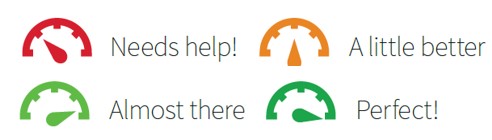
Clicking the accessibility gauge opens a window on the right side of the screen with instructions on how to fix the document or image.
Learn more about Accessibility Scores.
Alternative Formats
In addition to accessibility scores and help, Ally automatically generates alternative accessible file formats for all files you upload to Canvas. Students can download these alternative formats, giving them greater freedom to consume the content in your course. The file types created include PDF, ePub, audio, HTML, braille, and machine-translated versions.
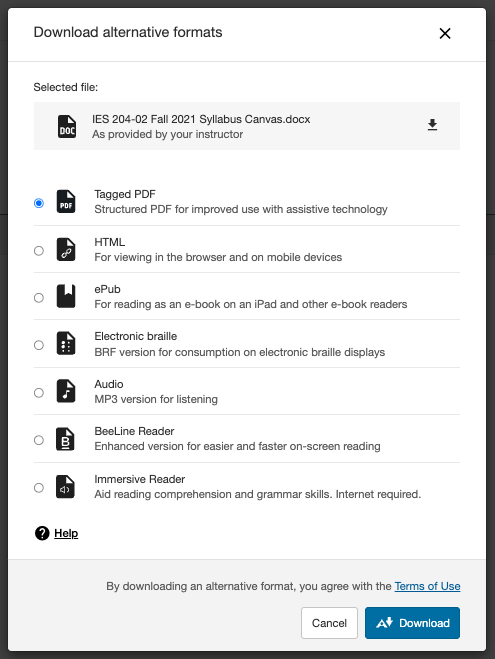
- Learn more about Alternative Formats.
- Learn more about Ally and Accessibility.
- Watch the videos from the 2025 Ally training.
- Learn more about Ally at Chapman.
Canvas Rich Content Editor (RCE)
The Canvas Rich Content Editor is the foundation for creating accessible content in Canvas Announcements, Pages, Discussions, Assignments, Quizzes, and New Quizzes.
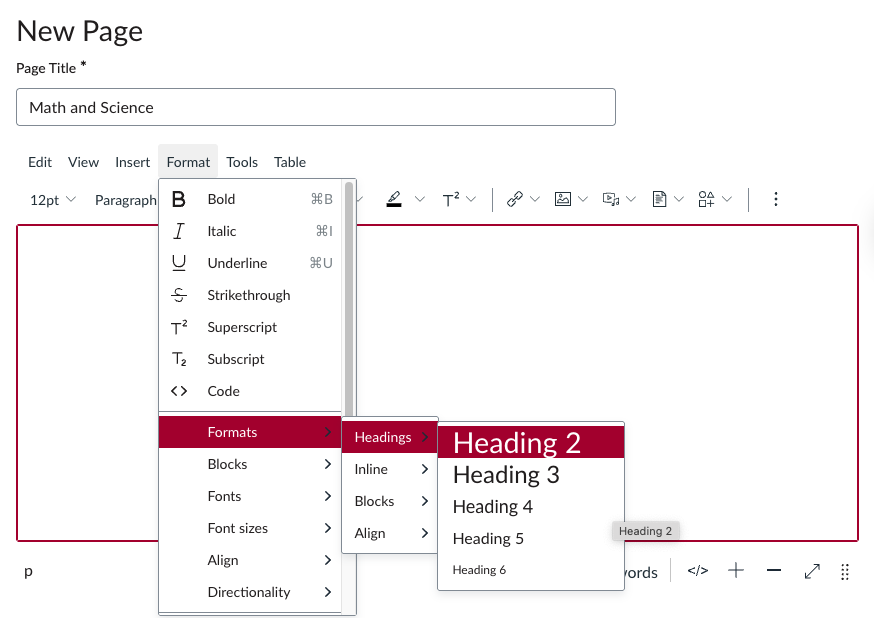
The toolbar makes it simple to add headings, lists, links, tables, and other content. Even better, it automatically applies the correct markup behind the scenes, ensuring your content is accessible to students who use screen readers, voice control, eye‑tracking tools, or other assistive technologies.
Always use the styles and tools in the Rich Content Editor when adding headings, images, tables, files, and other elements. The Rich Content Editor is designed to create accessible content for you.
For more information, learn to use the Rich Content Editor.
Canvas Equation Editor
The Equation Editor in the Rich Content Editor makes math and science content accessible.
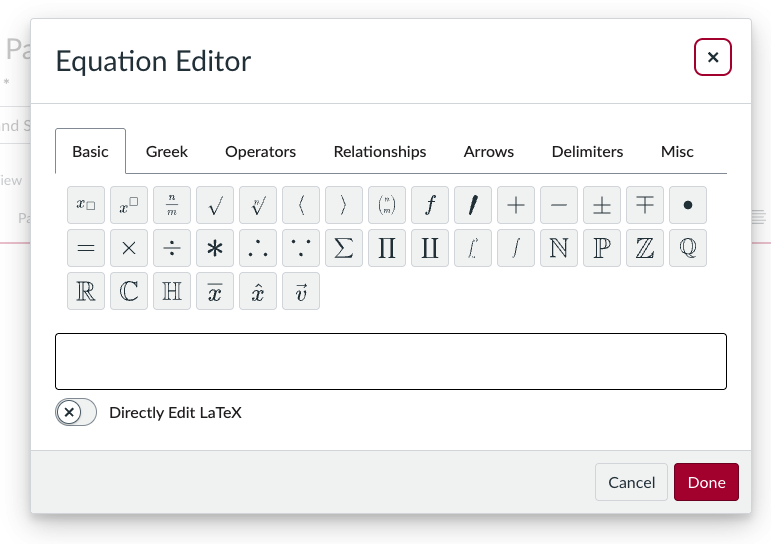
Use this editor to help you create accessible math equations and scientific notation in both content and quizzes.
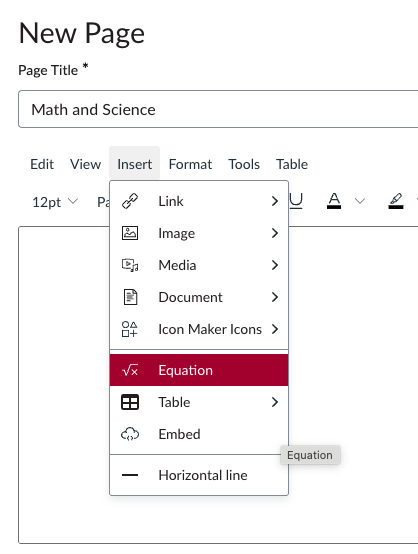
In the Rich-Content Editor, select Insert > Equation:
The Equation Editor allows you to input expressions, symbols, operations, and other mathematical items.
See more on the Canvas Equation Editor:
- Canvas Equation Editor Tips: Basic View
- Canvas Equation Editor Tips: Advanced View
- Canvas Equation Editor Tips: Chemistry
- Canvas Formula Quiz Question Helper Functions
- Math Editor in the Rich Content Editor
Canvas Accessibility Workshops
The Canvas Team offers a 4-part series of workshops to help you learn how to use Canvas tools to create accessible content, check your content for accessibility, and remediate it to make it more accessible.
The series includes:
- Creating Accessible Content using the Rich Content Editor (RCE)
- Checking your Files and Images in Canvas using Ally
- Checking Video Content in Canvas for Accessibility
- Exploring Alternative Formats in Canvas with Ally
Faculty, staff, and student workers who create Canvas content are invited to sign up and attend. All meetings are held over Zoom. Sign up to see the schedule and receive the Zoom link.
Canvas Accessibility Support
When you have questions, we have answers! Reach out to the Chapman Canvas team at
canvas@chapman.edu with questions about using Canvas accessibility tools.