- If the recipient is an internal Chapman user with Outlook, then the message will be seamlessly decrypted and available to them.
- External recipients are prompted to send a verification email (two-factor) or sign in with their identity provider to read the message.
Once viewed, the recipient can send encrypted replies to the sender. All attachments are also fully encrypted as part of this process.
Sending an encrypted email:
There are two ways to send an encrypted email from a Chapman University account:
- Tag your subject with the word SECUREMAIL. This can be done in any email client, such as Apple Mail, when connected directly
to your Chapman University account.
- Example subject: [SECUREMAIL] Your login details.
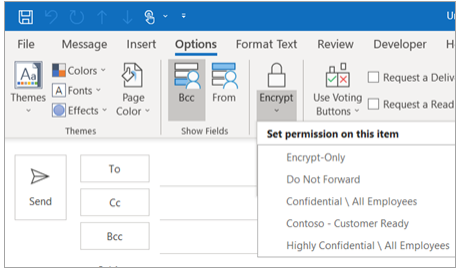
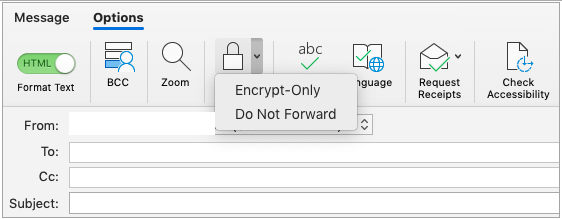
- Open a new message. Under Options, click the Encrypt Message option inside of Outlook for Windows/Mac client. Choose the Encrypt-Only option.