
The Chapman Open guest wifi network is available to visitors without an eduroam account. To get started, connect your device to Chapman Open and accept the terms and conditions. It can also be used in residences to connect devices such as smart TVs, gaming consoles, streaming devices, smart speakers, and other smart home devices. Please see the steps listed below to get started.
About Eduroam
Eduroam is the primary Wi-Fi wireless network offered by Chapman University. It allows all students, staff, and faculty to stay connected to wireless internet across campus while maintaining a fast, reliable,
and secure connection. Active Chapman University members can connect to Eduroam.
Eduroam is a global partnership among educational institutions that enables users
to access Wi-Fi using their university credentials. Once connected, your devices will
automatically join the Wi-Fi network at Chapman University and at many nearby universities,
such as UCI, CSUF, USC, and others. Similarly, visiting staff, faculty, and students
at Chapman University can also access Wi-Fi using their own university credentials.
It is available at Chapman and over 38,000 other locations worldwide.
Connecting Your Devices to Eduroam
Below are tutorials and instructions for connecting your specific device to the eduroam
network. Please select your device from the list below for more information on how
to get connected.
Note: You may be presented with a one-time prompt to trust or accept Chapman's authentication
server. This is part of the setup and is encouraged.
PDF Instructions:
If you previously attended another university and installed a Wi-Fi certificate or profile on your MacBook, you may need to remove it before connecting to eduroam with your Chapman account. Here's how:
- Click the Apple menu and select System Settings.
- Search for Profiles, or go to General > Device Management.
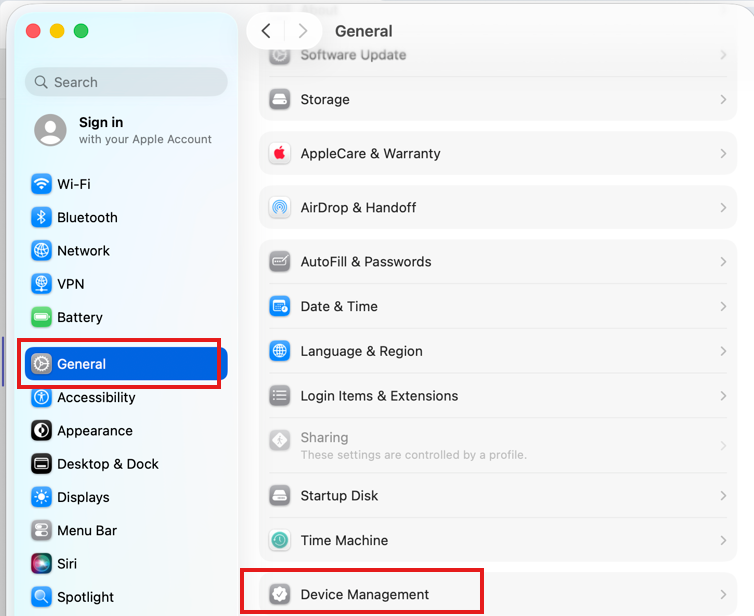
- Look for a profile listed from the previous organization (often you will see the university's name in it).
- Click the minus (-) button and select remove.

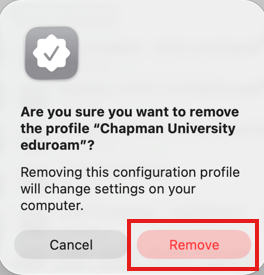
- Enter your Mac’s administrator password if prompted. The profile will then be deleted.
-
Once it's removed, you can follow Chapman's Eduroam setup instructions to connect using your Chapman credentials.
Registering Devices on Chapman Open (For Residence)
The Chapman Open guest WiFi network is available to visitors without an eduroam account. It can also be used to connect devices such as smart TVs, gaming consoles, streaming devices, smart speakers, and other smart home devices. To get started, connect your device to Chapman Open and accept the terms and conditions.
Device registration allows your device to use the Chapman Open network for up to 1 year without clicking the accept button, and is intended for devices that don’t work properly with eduroam.
Registration is valid for one year, at which point you’ll need to repeat the steps for your device.
In order to complete this procedure, you’ll need to find the Mac Address (also called the Physical Address or WiFi Address) for your device. Example: 5C-E0-C5-35-78-FE or 5C:E0:C5:35:78:FE. The procedure for finding the MAC address will vary depending on your device.
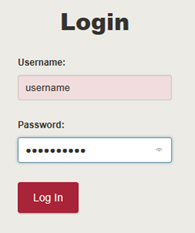
- While on campus and connected to WiFi, go to the Device Registration page.
- At the logon prompt, enter your Chapman username and password, and click Log In.
- Enter a descriptive name for your device, followed by the Mac Address.
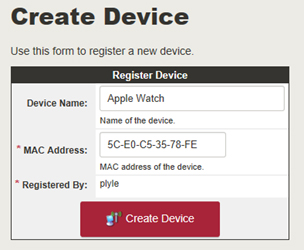
- Click Create Device. Verify the details on the confirmation page.
- If your device is already connected to Chapman Open, please disconnect. Wait at least 6 minutes, then reconnect to Chapman Open. You are done.
- Troubleshooting:
- If you are having problems with device registration, please double-check that you’ve registered the correct MAC address in the portal and that you've disconnected the device for at least 6 minutes.
- Send an email to servicedesk@chapman.edu with your issue. Please include the device type (e.g., Apple Watch) and MAC address in your request.
Troubleshooting
WiFi Calling
With "wireless" or "Wi-Fi" calling, users need to connect to a Wi-Fi network for the
service to be available.
Similar to Microsoft Teams, Facebook Messenger, and Google Hangouts, this feature
allows users to make calls almost anywhere in the world as long as they are connected
to a Wi-Fi network.
For more information regarding wireless calling services, please visit your service
provider’s website.