
»Chapman University Eduroam Wi-Fi
Learn more about Eduroam Wi-Fi and how to connect:
Eduroam is the primary Wi-Fi wireless network offered by Chapman University. It allows all
students, staff, and faculty to stay connected to wireless internet across campus while maintaining a fast, reliable,
and secure connection. Active Chapman University members can connect to Eduroam Wi-Fi by clicking the button below.
If you are visiting Chapman University, you can connect to Wi-Fi by selecting Chapman Open from the list of available networks on your device.
Instructions for connecting to Eduroam Wi-Fi
What are the steps to connect to Eduroam?
What is Eduroam?
How do I connect devices such as smart TVs, gaming consoles, or IoT devices to the wireless network?
Device registration allows devices such as smart TVs, gaming consoles, and other devices that currently do not
support the main method of connecting to Chapman Wi-Fi via Eduroam to use the Chapman
Open network. These devices can use the network for up to one year. After that period, you will need
to repeat the registration process.
To connect the supported devices, including computers and smartphones, to Chapman's
Wi-Fi network, please follow these steps. For other devices, follow the steps below to register.
To complete this procedure, you'll need to find your device's MAC address (also called the Physical Address or Wi-Fi Address). Example: 5C-E0-C5-35-78-FE or
5C:E0:C5:35:78:FE. The steps for finding the MAC address vary by device; please check
with the manufacturer.
Device registration steps:
- While on campus and connected to Wi-Fi, go to the Device Registration page.
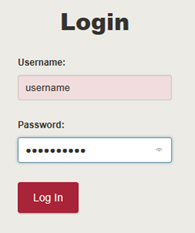
- At the logon prompt, enter your Chapman username and password, and click Log In.
- Enter a descriptive name for your device, followed by its MAC address.
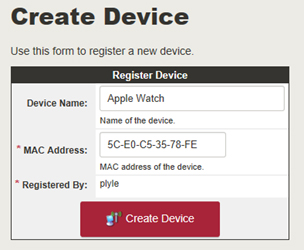
- Click Create Device. Verify the details on the confirmation page.
- If your device is already connected to Chapman Open, please disconnect. Wait at least 6 minutes, then reconnect to Chapman Open.
-
- If you are having problems with device registration, please double-check that you've registered the correct MAC address in the portal and that you've disconnected the device for at least 6 minutes.
- Send an email to servicedesk@chapman.edu with your issue. Please include the device type (e.g., Apple Watch, PlayStation) and MAC address in your request.
Frequently Asked Questions
Q. I am new to Chapman University, but my prior institution had Eduroam. What do I
do?
A. You should remove the Eduroam credentials from your prior institution and install
new ones using your Chapman University credentials. This will ensure you have access
to resources on the Chapman University campus network.
Q. I am at another campus that provides eduroam. How can I connect?
A. If you have a current affiliation with Chapman University, you may connect to eduroam
anywhere just as you would on the Chapman University campus.
Q. I am having issues connecting to eduroam or running into issues with installation.
What should I do?
A. Contact the Service Desk at servicedesk@chapman.edu, by phone at 714-997-6600, or by stopping in at our location on the first floor of
Leather Libraries for assistance.
Q. How do I check if I am connected to Eduroam correctly?
For additional information and detailed guidance, please refer to the Wi-Fi Certificate-based Authentication information page.
Q. Why do I have to install a profile to use Eduroam?
A. Connecting to Eduroam is done through a certificate-based process using SecureW2.
SecureW2 is a cloud-based onboarding and authentication service that simplifies and
secures the connection for students, faculty, and staff at Chapman University to the
Eduroam Wi-Fi network. Instead of manually setting up the connection or relying on
insecure username-password logins, SecureW2 guides users through a quick configuration
process. This process automatically installs the necessary network settings and certificates,
making the connection straightforward and safe.
Q. What factors affect the strength of my Wi-Fi signal?
A. Signal strength is generally affected by how far the user is from the Wi-Fi access
point, as well as any physical barriers that may be present between them. Interference
from nearby Wi-Fi devices can also impact signal quality. In contrast, connection
speeds are influenced by the number of networks broadcasting in the area and by the
number of devices connected to, or actively using, a specific access point or the
overall network.
Q. I'm connected to Eduroam, but my internet is slow
A. If you have been moving around the building, your device might not have connected
to the nearest Wi-Fi access point yet. Once you find a place to settle, turn your
Wi-Fi off and then back on. This will disconnect your device from the farther access
point and allow it to connect to the closest one.
Q. Can Chapman University IS&T monitor my internet activity?
A. Neither the SecureW2 certificate nor the SecureW2 JoinNow app permits Chapman University
to monitor or access your data.
Q. What information does the certificate collect from my device and send to your system?
A. The certificate enables your device to automatically connect to Eduroam after you
have completed the initial registration.
- For personal devices, this connection utilizes the first name, last name, email address, IdentiKey, and the device's operating system.
- For Secure Computing devices, this connection only uses the device's serial number.
A note about macOS and iOS Privacy Settings and how they impact your browsing experience: Both macOS and iOS have robust privacy settings that can impact your browsing experience in several ways. Although enabling these settings will give you more oversight over the data you share with third-party companies, they may also slow down your browsing experience, depending on the website you are visiting. We recommend that you review the settings listed on this blog and turn these settings on or off based on your needs.
Wi-Fi Calling
With "wireless" or "Wi-Fi" calling, users need to connect to a Wi-Fi network for the
service to be available. Similar to Microsoft Teams, Facebook Messenger, and Google
Hangouts, this feature allows users to make calls almost anywhere in the world as
long as they are connected to a Wi-Fi network.
For more information regarding wireless calling services, please visit your service
provider’s website.