»Email for Faculty and Staff
Microsoft Outlook is the primary email platform at Chapman University. Instructions for setting up your Outlook 365 email on specific devices are listed below.
For more information on using Outlook and its features, such as calendars, meetings, and filtering, please visit Microsoft's Outlook Help & Learning page.
Accessing Web-based Outlook Email
Please visit Outlook.chapman.edu to start.
How to Set Up Outlook on a Mac
- Download and open the Outlook app.
- Click "Get Started".
- Choose your preferred "look" (Colorful or Classic) and click "Continue".
- Click "Start Using Outlook"
- Enter your Chapman University Email address (username@chapman.edu)
- Enter your Chapman University account password and click "Sign In".
- Click "Done".
To add an account, please follow the instructions below.
- Open the Outlook app.
- Click "Tools".
- Click "Accounts".
- Click the "+" (Plus sign) on the bottom-left side of the screen.
- Enter your Chapman University Email address (username@chapman.edu)
- Enter your Chapman University account password and click "Sign In".
- Click "Done."
How to Set Up Outlook Email on iPhone/iPad
- Go to your “Settings” app
- Select “Password & Accounts”
- Select “Add Account”
- Select “Exchange”
- Enter your full Chapman University email address
- Select “Sign In” only.
- DO NOT select “configure manually.”
- Select “Work or school account.”
- Enter your Chapman University “password.”
- Select “Accept” on the permissions requested page.
- Set which apps to sync with your mail (e.g., Contacts, Calendars, Reminders).
How to Remove Email on iPhone/iPad
- Go to your “Settings” app
- Select “Password & Accounts”
- Under “Accounts,” select your Chapman University “Exchange account”
- Select “Delete” account.
- Select “Delete from my iPhone”
How to Set Up Outlook Email on Android
Android email setup varies from device to device. To set up your Android device, do the following:
1. Go to Settings
2. Then open Accounts
3. Tap on Add Account
4. Choose Exchange ActiveSync, Microsoft Exchange, or Corporate for the account type
5. You may need to provide all or some of the following
a. Email address: user@chapman.edu
b. Account: user@chapman.edu (Chapman Email)
c. Password: Your Chapman password
d. Domain name: (LEAVE BLANK)
6. Check the check box to use an SSL connection
7. You will get a warning that Exchange has security features that will need to be enforced. You must agree to this to receive emails on your device.
8. Choose the items you want to sync on your device.
Junk Email Filtering
Recently, the campus has moved its email to Office 365. One of the advantages of this platform is that spam mail is now handled directly in your mailbox rather than through a separate system, as we had before. With this new spam system, users now have more control over filtering their emails. You can always view everything that went to spam right in your Outlook application, in a folder called “Junk Email”. We know that legitimate emails occasionally end up in the junk folder, so we encourage you to review it periodically. Unblocking individual emails is very simple. Here are some quick steps for training your inbox to recognize legitimate emails.
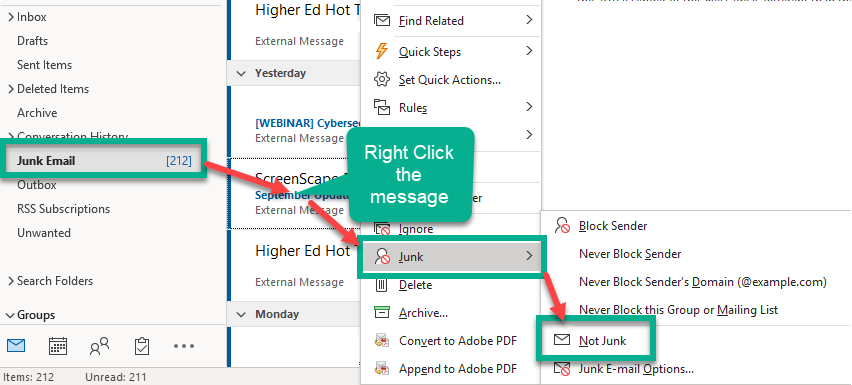
- Open your Junk Email folder on the left side of your inbox window.
- Right-click on any legitimate email that ended up in your junk folder and locate the “Junk” option near the bottom of the menu.
- Hover the mouse arrow over the “Junk” option and click “Not Junk.”
- The message will be moved back to your email folder.
- You can also check the box next to the message “Always trust email from this email address”.
This process will prevent any further emails from that sender from being blocked.
If at any time you would like assistance with unblocking emails, please get in touch
with the service desk at Servicedesk@chapman.edu or (714) 997-6600.
Focused Inbox
One of the features in Outlook 365 is the Focused Inbox. The purpose of the Focused Inbox is to help filter emails in your inbox by their relevance. Emails that are more frequently received and viewed in your inbox would be considered "relevant" emails. With this feature activated, the relevant emails will be filtered into the "Focused" inbox, giving them more immediate visibility, whereas less relevant emails will be filtered into the "Other" inbox. It is important to note that all emails are still in your inbox. This feature helps organize your inbox.
The Focused Inbox feature is not mandatory and can easily be switched on or off. Here's how:
- Open Outlook and click "View" at the top of the screen.
- Click "Show Focused Inbox" to toggle the feature on or off.

How to Set Up Forwarding
Log in to Outlook.chapman.edu using your regular Chapman credentials. Then follow the steps outlined in the forwarding setup article from Microsoft.
Password Reset
If you have enrolled your account in the Self-Service Password Reset tool, you can go to password.chapman.edu, enter your email, and click next. On the next screen, select “Forgot my password.” Follow the instructions to reset your password.
If you have not yet entered your security questions or if your answers are not accepted, contact the Service Desk. You will be asked two or more questions to confirm your identity.