»How Can a Guest Speaker on Zoom See and Engage With Students in the Classroom?
Chapman classrooms are equipped with special technology for hosting Zoom meetings, which makes it possible for a guest speaker to join your class from almost anywhere in the world via Zoom. We have two main types of Zoom-enabled classrooms: Connect and Flexcam. In Connect classrooms, the classroom camera is fixed and faces the front of the room. In Flexcam classrooms, the classroom camera can be turned to face the students.
When you have a guest speaker joining your class via Zoom, you likely want your guest speaker to be able to see your students in the classroom and engage with them. This page presents a few different ways to accomplish that in a Connect classroom using additional cameras.
This page assumes that you have already created a Zoom meeting, shared the Zoom meeting information with your guest speaker, and started the Zoom meeting in the classroom. If you need a refresher on these preliminary steps, please see: Using Zoom in Your Classroom.
In the following 7-minute video (recorded in a Chapman Connect classroom), we demonstrate three different options for allowing a guest speaker on Zoom to see and engage with students who are physically present in the classroom. You can select CC in the lower-right corner of the video to turn on captions.
To help you choose the best option for you and your students, we have also summarized the options below, including the instructions and pros and cons for each option.
| Option | Instructions | Pros | Cons |
|
Instructor joins the Zoom meeting on a second device in the classroom (for example, an iPhone or laptop with webcam) |
|
|
|
| Instructor requests a flex cam from Media Services |
|
|
|
| Students join the Zoom meeting on their devices in the classroom |
|
|
|
What if someone accidentally connects to audio?
If you opt to join the Zoom meeting on a second device or have your students join the Zoom meeting on their devices in the classroom, you may hear feedback due to someone accidentally connecting to audio. Fortunately, this is easy to fix.
If someone has accidentally connected to audio, they will see a microphone in the lower-left corner of the Zoom meeting on their device. The microphone may be muted or unmuted.

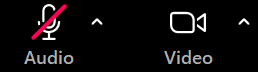
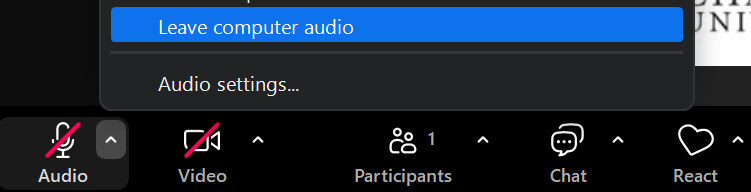
They can select the caret next to the microphone to leave audio.
Questions? Need support?
- If you are welcoming a guest speaker via Zoom and would like to discuss different options with an Educational Technology Services team member, please email us at edutech@chapman.edu.
- If you would like to meet with a classroom technology expert in your classroom, please use one of the links below (select your campus).
- For immediate classroom technology support, please dial x6666 on the classroom phone.