»Checking Event Location and Details in 25Live
As an event planner(requestor), the Location Search in 25live is a highly valuable feature for helping you easily identify available Chapman locations and further learn about the location details. You can do this before you enter the ‘create an event’ process, saving you time and wasted energy. Once you select a location in the Location Search, you can instantly apply it to a new event. Please follow the instructions below to use the location feature in 25Live.
1) Make sure you are logged into 25Live
2) From the homepage, click on Go to Search

3A) Within this page, you can search by keyword under the Search Object drop-down and select Locations.

3B) To search by a set of criteria, click on Pre-defined Location Searches and select a search under Search Groupings. Example: Under Categories, select a specific category to view all locations in that category.
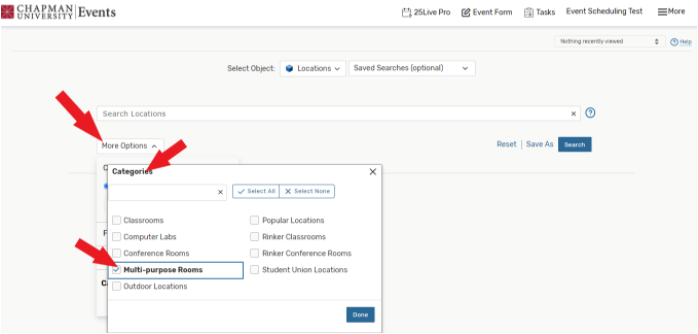
4) Once a set of locations are displayed, click on the Availability Tab. You can now see other events and schedule your event according to the schedule grid. Once you select a time and location, the system will automatically take you to the ‘Event Form’ form and populate your location.

5) Location Details: Locate the desired location and click on the location name to see location details.

5A) This view shows you location features, layout capacities, and sample diagrams.
